Create an Adjustment
Steps
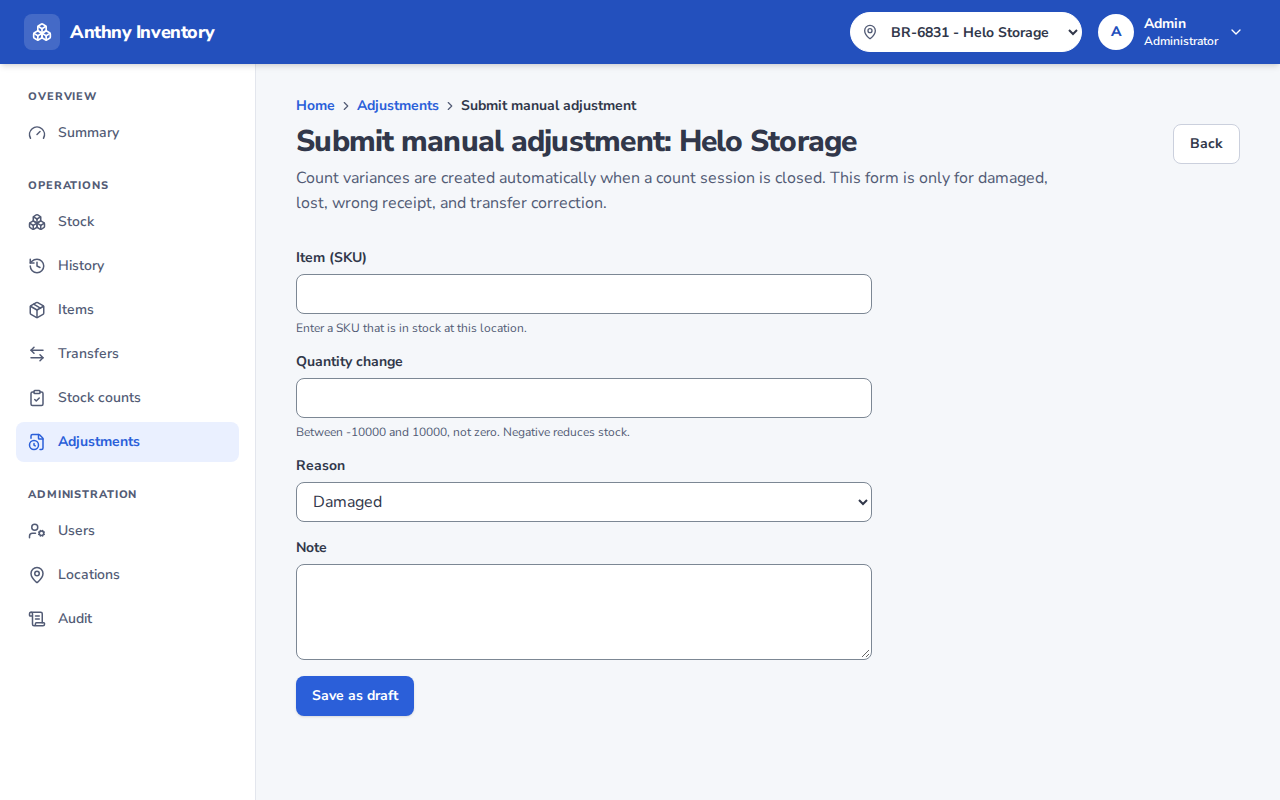
- Go to Adjustments and select your location
- Click New adjustment
- Select the item to adjust (search by SKU or name)
- Enter the quantity delta — the change in stock:
- Use a positive number to increase stock (e.g.
+5if 5 items were found) - Use a negative number to decrease stock (e.g.
-3if 3 items are damaged)
- Use a positive number to increase stock (e.g.
- Select a reason from the dropdown
- Add a note explaining the situation (required when submitting)
- Choose to either:
- Save as draft — come back and edit later
- Submit — send directly for approval
Draft vs Submit
| Draft | Submit | |
|---|---|---|
| Saved? | Yes | Yes |
| Visible to manager? | No (only you) | Yes |
| Can be edited? | Yes | No |
| Can be submitted? | Yes | — |
Notes
- You can only create adjustments for items that exist at your location
- The adjustment does not change stock immediately — it only changes stock after a manager approves it
- Once submitted, you cannot edit or withdraw the adjustment; contact your manager
Editing a draft
Go to Adjustments, find your draft, and click Details. You can edit the item, quantity, reason, and note, or submit it for approval.