Start a Count Session
Who can start
Managers and Admins only.
Steps
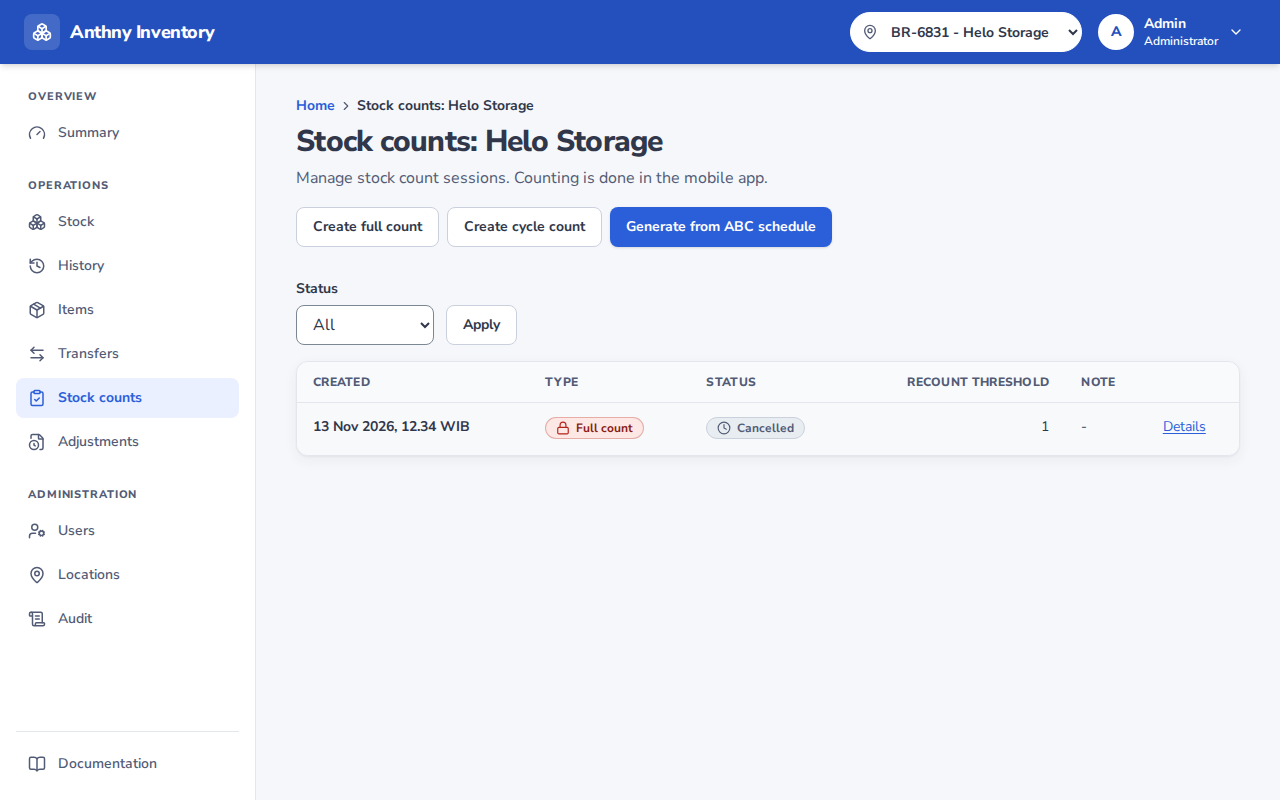
- Go to Counts and select the location to count
- Click New count session
- Confirm the location and click Start
The location is now frozen. Users will see a banner on the Stock page notifying them that the location is frozen and no movements are allowed.

Counting items (staff)
After the session is started, staff can begin counting:
- Go to Counts and select the active session
- For each item:
- Scan the barcode or select the item from the list
- Enter the actual physical quantity you count
- The expected quantity is not shown (blind count)
- Count all items — the session shows how many items have been counted vs remaining
:::tip Counting tips
- Count items in a systematic order (shelf by shelf, box by box)
- If an item is in multiple places, count all and enter the total
- If you find an item that is not in the system, note it down and report to your manager :::
Recount
If you are unsure about a count, you can update the quantity for any item before the session is closed. The system keeps only the latest count for each item.
What if I find a new item?
Items not currently in the system cannot be added during a count. Report it to your manager — they will add the item first, then it can be included in the next count.