Add an Item
Go to Items in the sidebar, then click Add item.
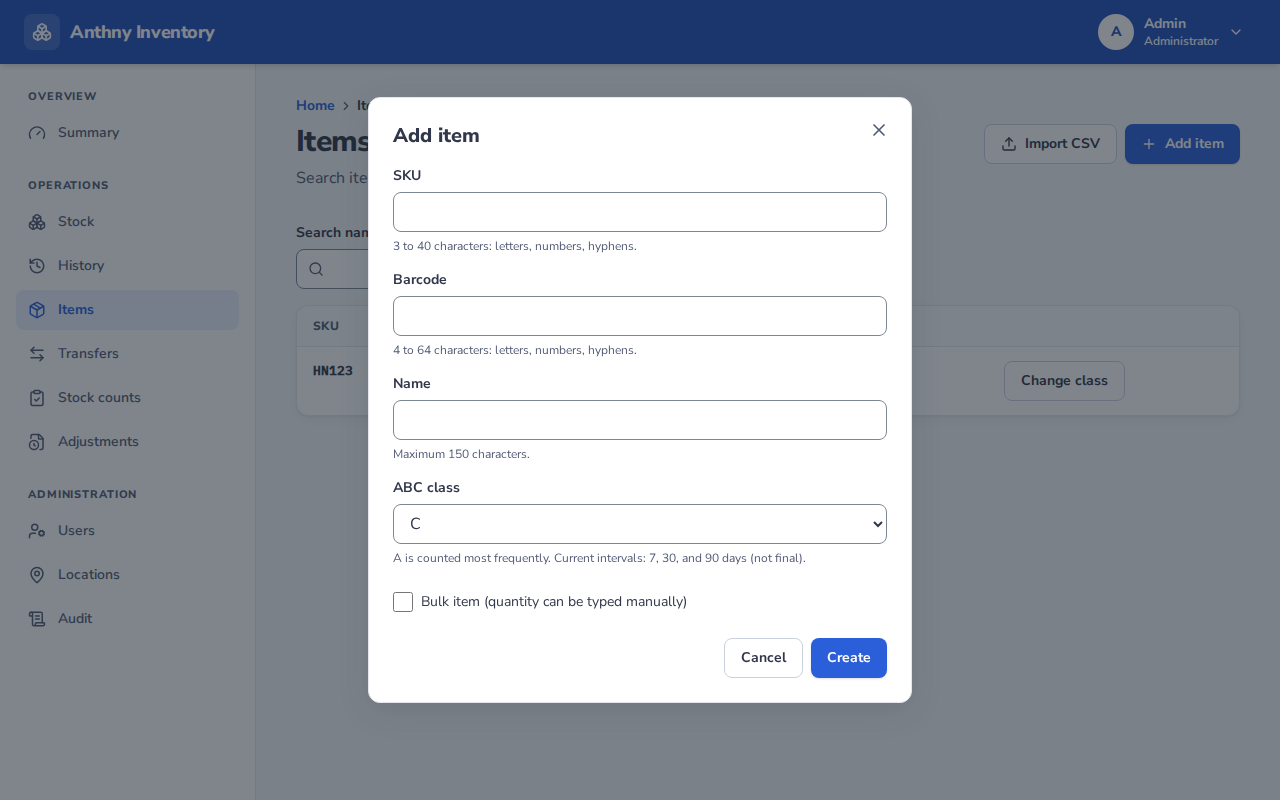
Fields
SKU
A short, unique code for this product. Rules:
- 3 to 40 characters
- Letters, numbers, and hyphens only
- Must be unique across all items
Examples: BALL-FUTSAL-01, JRS-HOME-L, CONE-ORG
Barcode
The code that will be scanned by the mobile app or barcode scanner. Rules:
- 4 to 64 characters
- Letters, numbers, and hyphens only
- Must be unique across all items
:::tip Auto-generate barcode If you don't have a barcode yet, leave this field empty and the system will auto-generate one based on the SKU. You can then print the generated barcode label. :::
Name
A descriptive product name, maximum 150 characters.
Examples: Futsal Ball Size 4, Home Jersey Large, Orange Traffic Cone
ABC Class
Determines how frequently this item should be counted. See ABC Class for a full explanation.
- A — high priority, counted every 7 days
- B — medium priority, counted every 30 days
- C — low priority, counted every 90 days
Default is C.
Bulk item
Check this if the item is counted in bulk quantities (e.g. a bag of bibs, a box of balls). When checked, users can type the quantity directly during receive/issue/count instead of scanning individual barcodes.
After creating
The item will appear in the item list immediately. It will have zero stock at all locations until a Receive operation is recorded.