Import Items from CSV
If you have a large product catalogue, you can upload all items at once using a CSV file instead of adding them one by one.
Go to Items → Import from CSV.
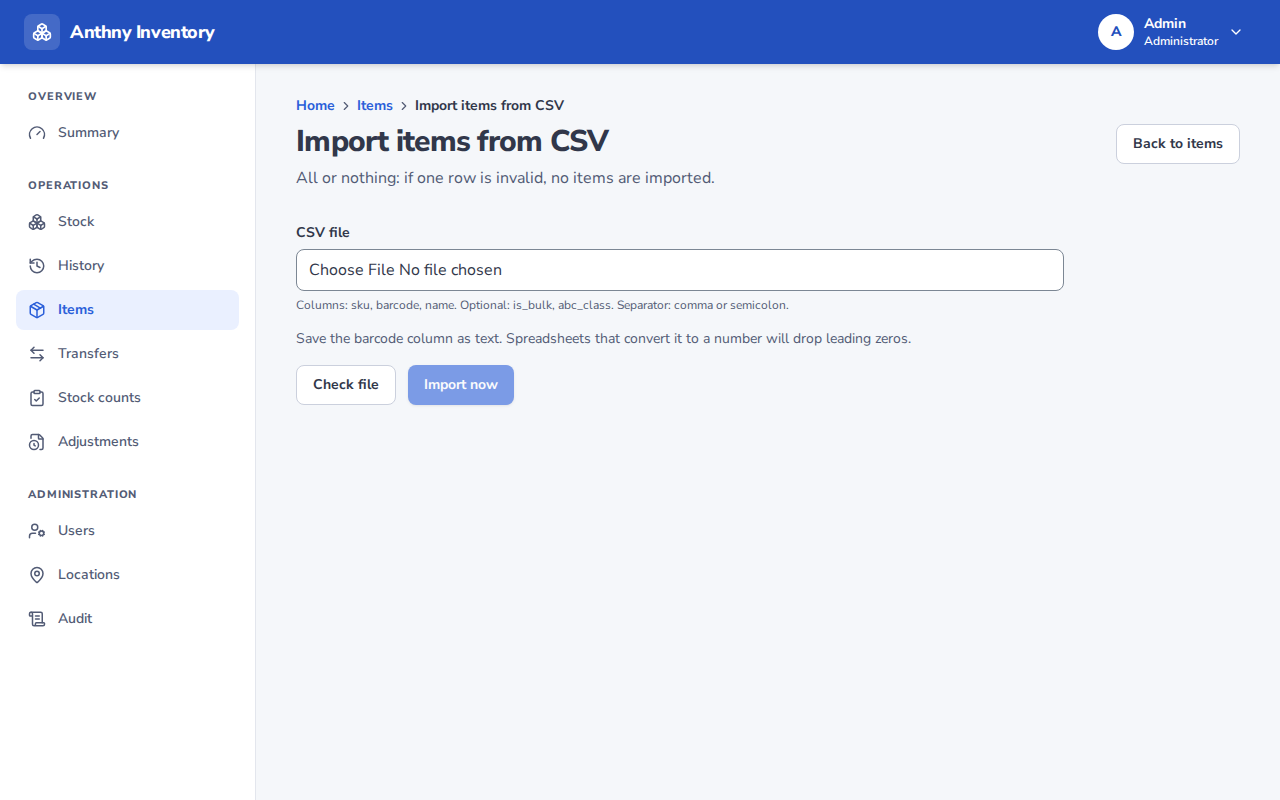
CSV format
Download the template from the import page, or create a file with these columns in this exact order:
| Column | Required | Description |
|---|---|---|
sku | ✅ | Unique SKU (3–40 chars, letters/numbers/hyphens) |
barcode | ✅ | Unique barcode (4–64 chars, letters/numbers/hyphens) |
name | ✅ | Product name (max 150 chars) |
abc_class | ✅ | A, B, or C |
is_bulk | ✅ | true or false |
Example:
sku,barcode,name,abc_class,is_bulk
BALL-FUT-01,BAR-BALL-FUT-01,Futsal Ball Size 4,A,false
JRS-HOME-L,BAR-JRS-HOME-L,Home Jersey Large,A,false
CONE-ORG,BAR-CONE-ORG,Orange Traffic Cone,C,true
Rules
- The header row is required
- SKUs and barcodes must be unique — if a SKU already exists in the system, that row will be rejected
- All 5 columns must be present in every row
- Maximum 500 rows per import
After uploading
The system will show a summary of:
- How many items were created successfully
- Which rows were rejected and why
Rejected rows will not be retried automatically. Fix the errors in your CSV and re-upload the corrected rows.