Send a Transfer
Steps
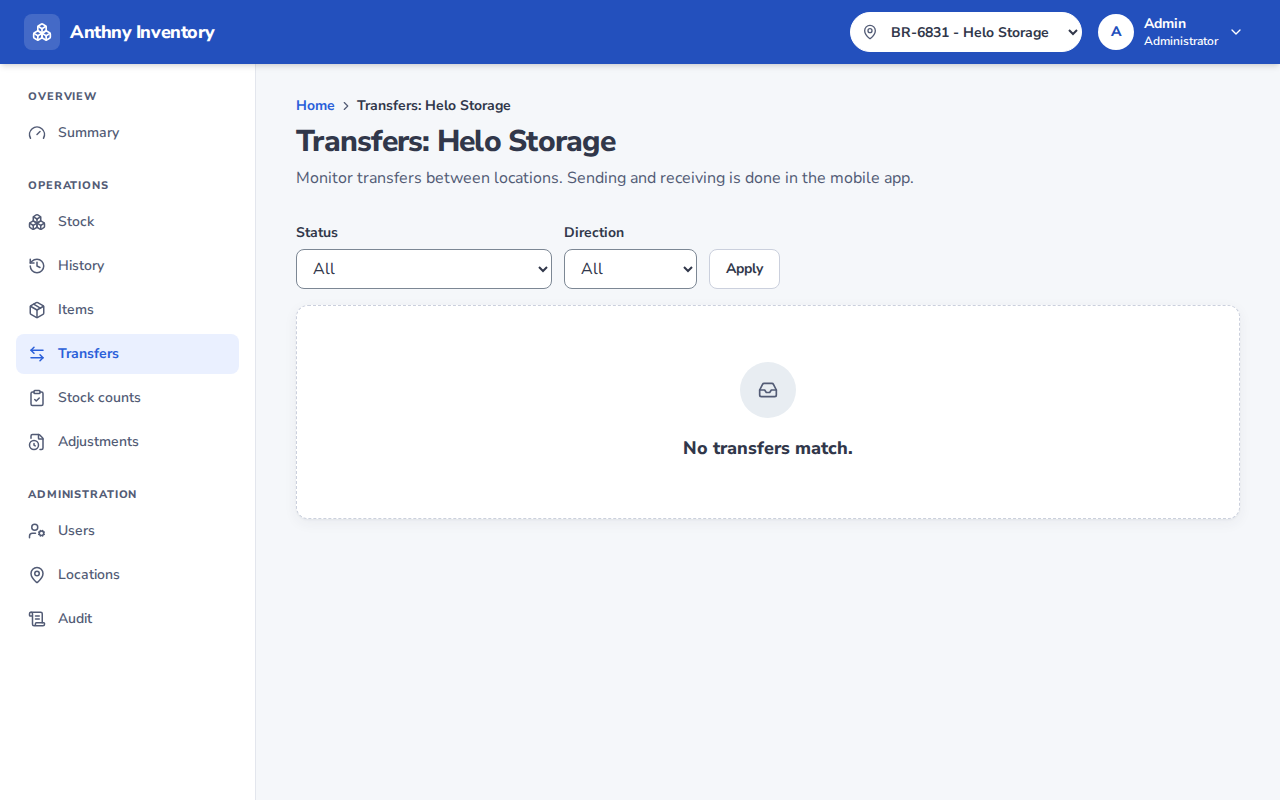
- Go to Transfers and select your location (the sending location)
- Click New transfer
- Select the destination location from the dropdown
- Add items:
- Scan the item's barcode, or search by SKU/name
- Enter the quantity to send
- Repeat for each item
- (Optional) Add a note (e.g. "For match day at Stadium A")
- Click Send
What happens
- Stock is deducted from your location immediately
- The transfer appears in the receiver's list with status In transit
- The receiver must confirm receipt to complete the transfer
Notes
- You can include multiple items in one transfer
- You cannot send more stock than is currently available at your location
- Once sent, a transfer cannot be cancelled — contact the receiver to handle discrepancies
- The transfer detail page shows all items, quantities sent, and quantities received (once confirmed)
Overdue transfers
If a transfer is not received within the expected timeframe, it will be marked Overdue in the transfers list. Follow up with the receiving location to confirm or investigate.